Cropping images
A photo of a product is often taken from too far away, or the subject is not in the middle. With cropping, an editor draws a box around the part that matters, and the thumbnails are made from that part only.
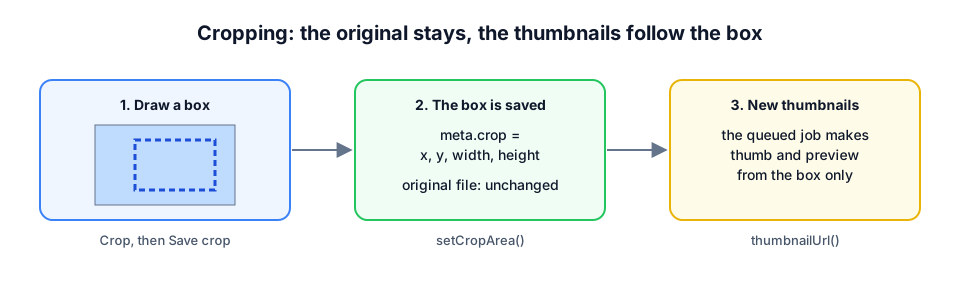
Three things are good to know before you start:
- The original file is never changed. The package only remembers the box: where it starts and how big it is. The thumbnails and previews are made from that box. Because the original stays, you can crop again or undo the crop at any time.
- It works for images only. PDFs, videos and other files get no Crop button.
- One box per upload. Every conversion (
thumb,previewand the ones you add) is made from the same box.
The crop tool itself is Cropper.js, a small JavaScript library. You do not have to install it: the upload manager loads it for you.
Step 1. Turn it on
Cropping is off by default. Add :crop="true" to the upload manager on your page:
<livewire:uploads.upload-manager
    :model="$product"
    collection="photos"
    :public="true"
    accept="jpg,jpeg,png,webp"
    :crop="true"
/>
Reload the page. Every image in the list now has a Crop link next to Open.
Write :crop="true" with the colon. Without it, Livewire receives the text "true", not the value true.
Step 2. Crop a photo
- Click Crop under a photo. A window opens with the full photo and a box on top of it.
- Drag the box to move it, and drag its corners to make it bigger or smaller.
- Click Save crop.
The list shows “Processing” for a moment while the new thumbnail is made, and “Cropped” after the file name once it is done.
To go back to the whole photo, click Crop again and choose Use the whole image. Cancel closes the window and changes nothing.
When the thumbnail does not change, the queue worker is probably not running: the new thumbnail is made by the same job as the first one. Run php artisan queue:work, or set UPLOADS_QUEUE_CONNECTION=sync in .env while you develop. See How it works.
Step 3. A fixed shape (optional)
Without more settings the editor can draw any shape. When every photo on your site has the same shape, for example wide banners or square avatars, fix it with aspect-ratio:
<livewire:uploads.upload-manager :model="$product" collection="photos" :crop="true" aspect-ratio="16/9" />
| You want | Write |
|---|---|
| Any shape | leave aspect-ratio out |
| A square | aspect-ratio="1" |
| Wide, like a video | aspect-ratio="16/9" |
| A classic photo | aspect-ratio="4/3" or aspect-ratio="3/2" |
| Tall, like a portrait | aspect-ratio="3/4" |
16:9 and 1.5 work too.
The shape only limits the box. A conversion with fit set to cover still cuts its own shape out of the box, so a square thumb of a 16:9 crop shows the middle of it. Give the conversions the same shape as the crop when the whole box has to be visible, see Conversions & PDF pages.
In your own code
The upload manager uses two methods on the upload that you can call yourself, for example in a seeder or your own form:
$photo = $product->firstUpload('photos');

// Keep a box of 800 × 450 pixels, 100 from the left and 50 from the top of the original.
$photo->setCropArea(['x' => 100, 'y' => 50, 'width' => 800, 'height' => 450]);

$photo->cropArea();          // ['x' => 100, 'y' => 50, 'width' => 800, 'height' => 450]

// Use the whole image again.
$photo->setCropArea(null);
The numbers are pixels of the original image. setCropArea() saves the box in the upload’s meta under crop and queues the job that makes the conversions again. It throws an InvalidArgumentException for a file that is not an image, or for a box without x, y, width and height, a negative position or a size below 1 pixel. A box that reaches past the edge of the image is kept inside the image.
Show the result like any other conversion:
<img src="<?= e($photo->thumbnailUrl()) ?>" alt="<?= e($photo->meta('caption', $photo->name)) ?>">
The address of a conversion on the public disk ends with ?v= and a number, for example photo-thumb.webp?v=1793606838. The number changes every time the conversions are made again, so browsers show the new thumbnail instead of the old one they remembered.
Where Cropper.js comes from
By default the upload manager loads Cropper.js 1.6.2 from jsDelivr, a free service that hosts JavaScript libraries. It is loaded once per page, and only on pages with :crop="true".
The addresses are in config/uploads.php:
'cropper' => [
    'script' => env('UPLOADS_CROPPER_SCRIPT', 'https://cdn.jsdelivr.net/npm/cropperjs@1.6.2/dist/cropper.min.js'),
    'style' => env('UPLOADS_CROPPER_STYLE', 'https://cdn.jsdelivr.net/npm/cropperjs@1.6.2/dist/cropper.min.css'),
],
Loading it yourself
You may not want the browser of your editors to contact jsDelivr, for example because of your privacy policy. Then install Cropper.js in your own app:
npm install cropperjs@1
Make it available to the page in resources/js/app.js:
import Cropper from 'cropperjs'
import 'cropperjs/dist/cropper.css'

window.Cropper = Cropper
Build the assets with npm run build (or keep npm run dev running), and tell the package not to load anything itself:
UPLOADS_CROPPER_SCRIPT=
UPLOADS_CROPPER_STYLE=
Use version 1 of Cropper.js: version 2 works in a completely different way and does not fit the upload manager.
Tailwind
The crop window uses Tailwind classes, like the rest of the upload manager. Tailwind only generates the classes it finds in your files, so let it read the views of the package. With Tailwind 4, add this line to resources/css/app.css:
@source '../../vendor/darvis/laravel-uploads/resources/views';
Without it, the window still works, but it has no size or backdrop.
When something goes wrong
| What you see | Why | What to do |
|---|---|---|
| No Crop link | :crop="true" is missing, or the file is not an image | Add :crop="true"; PDFs and videos cannot be cropped |
| Crop does nothing | Cropper.js is not loaded. The browser console (F12) says “Cropper.js is not loaded.” | Check the cropper addresses in config/uploads.php, or load it yourself as above |
| The window opens without a photo | The browser cannot open the original | Click Open under the photo; if that fails too, see Troubleshooting |
| The thumbnail stays the same | The job did not run yet | Start php artisan queue:work |
| “The crop area is not valid.” | The box had no size | Draw a bigger box and save again |
| 403 after Save crop | The policy of your model does not allow update | See Livewire components |